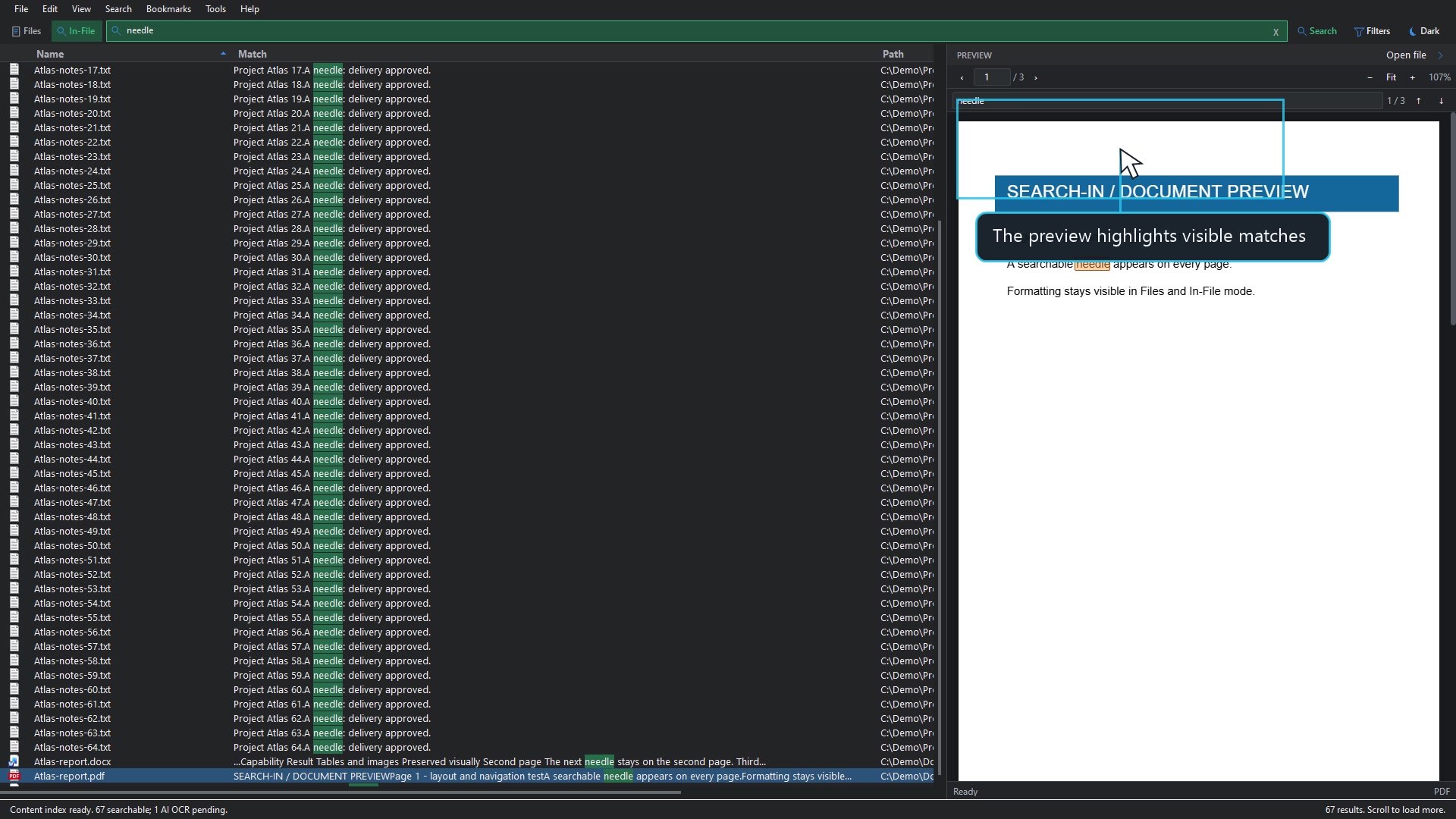
Remember the filename? Search it. Remember a sentence instead? Look inside. SEARCH-IN is free Windows desktop search software that brings your files, document text, and useful previews into one considered workspace.
Find the words inside your documents. Preview the match right beside the result.Synthetic demo files
01 / FILESFind the name.
Search filenames, extensions, and paths.
02 / IN-FILEFind the words.
Look inside your indexed documents.
03 / PREVIEWKnow it is the one.
Read the result before you open it.
ONE APP, A MORE USEFUL WORKFLOW
Find more. Open less.
Go from a half-remembered name to the right document. Stay in one place while you search, narrow the results, and check the contents.
FILES
You know something about the file.
Find a name, an extension, or part of a path. Choose a directory to narrow the location, then filter the results and inspect the preview.
TRY A FILENAMEAtlas-report
Filename and folder-path search
Directory scope and file-type filters
Live catalog updates as files change
IN-FILE
You remember what the document says.
Search the text extracted by your Content Indexer. Read the Match snippet, select a result, and navigate visible matches in the preview.
TRY A DISTINCTIVE PHRASEdelivery approved
Search locally indexed document text
Useful snippets beside each result
Shared preview with text finding where supported
01
A preview beside every search.
Read a PDF, inspect a picture, or check a text file without repeatedly switching apps. Files and In-File use the same embedded preview pane.
02
You choose the index scope.
Use the compact Content Indexer to select folders, start or resume local extraction, and see what is searchable or still needs AI OCR.
03
Results that keep moving.
Browse progressively loaded results instead of creating millions of visible rows at once. Resize columns to make room for the information you need.
04
Your place, your preferences.
Save useful searches with bookmarks. Follow your device theme automatically, or choose Light or Dark yourself.
05
AI only when you want it.
Run local extraction first. Optional AI OCR targets eligible files that still need text, using a provider you choose and a run you approve.
06
Quiet, in-app updates.
A download indicator tells you when an update is available. Review it, download inside the app, and choose when to run the installer.
CHOOSE THE WORKFLOW THAT FITS
Different tools. Different starting points.
Some searches begin with a filename. Others begin with a sentence, a scan, or a page you need to check. Here is where SEARCH-IN puts its attention.
WHY CHOOSE SEARCH-IN?
The document is the destination.
FREE WINDOWS APP
Our strongest combination is a local filename catalog, a dedicated document-text index, and a shared preview pane, with optional AI OCR for eligible files that still need text. You can find, inspect, and decide what to open in one workspace.
Names and words, clearly separated.Files for names and paths. In-File for prepared document text and Match snippets.
Context beside the result.Embedded previews across documents, images, text, media, and supported specialist formats.
Local first, AI by approval.Read accessible text locally; review AI Pending before choosing provider processing.
Provider control that stays with you.Encrypted saved credentials, multiple keys per provider, rotation, and cooldown handling.
SEARCH-IN alongside Everything, Listary, and Windows Search
Search tool
What its official documentation emphasizes
Where SEARCH-IN fits
EverythingFilename-first search
Filename and folder search, search operators, and real-time updates. Its documentation also describes content searches using text support and installed IFilters.Everything documentation ↗
Consider SEARCH-IN when you want a dedicated content-index workflow, Match snippets, shared embedded previews, and optional OCR processing together.
ListarySearch and launching
Finding files, launching applications, and quickly switching folders while using Open or Save dialogs.Listary feature overview ↗
Consider SEARCH-IN when the main task is looking inside documents, checking a page beside the result, and deciding which unreadable files need optional OCR.
Windows SearchBuilt into Windows
Indexing filenames, file properties, and supported file contents. What is searchable depends on indexed locations and file-type settings.Microsoft indexing guide ↗
Consider SEARCH-IN when you want a separate document-index scope, a visible AI Pending workflow, and your chosen provider credentials in a focused desktop app.
A workflow comparison, not a laboratory benchmark. Vendor descriptions are based on the linked official documentation, checked 19 October 2026. This is not an exhaustive feature audit: versions, editions, plugins, and configuration can change the picture. We do not claim competing apps lack every SEARCH-IN feature, or that SEARCH-IN is universally faster, smaller, or more accurate.
A good fit if: you regularly move between filenames, document text, and previews, and want optional AI OCR without making every search an AI request.
A good search starts with the right question. Here is how filename search, document indexing, and OCR fit together, without the jargon.
SEARCH-IN JOURNAL / 01THE EVERYDAY SEARCH
Desktop search is a way to find information in files on your own computer. The useful part is not just getting a list. It is knowing which result deserves your attention.
01
Start with what you remember.
If you remember a name, extension, or folder, start in Files. A filename search answers, "Where is that file?" It can locate a PDF by its name without reading the PDF's contents.
If you remember the words in the document instead, use In-File. Content search answers, "Which indexed document contains this text?" A distinctive phrase is often more useful than a common word that appears in hundreds of files.
NAME YOU REMEMBERAtlas-reportWORDS YOU REMEMBERdelivery approved
02
Give your search a place to begin.
When you know the project or folder, narrow the directory scope. Searching the right location can make a busy result list much easier to read. Use a file-type filter when you know you need a PDF, a picture, or another specific format.
The filename catalog and the document-content index have different scopes. Finding a filename does not prove its contents have been indexed. For In-File, check that the document is inside your chosen Content Indexer folders and that local extraction has finished.
03
A scan is a picture until its words are read.
A PDF can contain selectable text, scanned page images, or both. Searching a filename cannot reveal the words in an image. OCR, or optical character recognition, is the step that turns visible lettering into searchable text.
SEARCH-IN extracts available document text locally first. Eligible files that still need text can enter AI Pending. Optional AI OCR is a separate choice: configure a supported vision provider, review what needs processing, and approve the run. Provider fees and privacy terms are separate from the free desktop app.
04
Read the result before opening another app.
A Match snippet gives you a little context, not the whole story. Check the filename, path, and available file details, then use the embedded preview to see whether it is the right document. Where rendered text is available, move between visible matches or browse the relevant pages.
A preview is for quick inspection. Complex document layouts and specialist formats may look different from their native editor. When exact formatting matters, open the original file in its normal application.
Catalog
The file names and paths the engine can search.
Content index
Document text prepared for In-File search.
OCR
Reading lettering from scans or images into text.
Does SEARCH-IN search the web or my computer?
SEARCH-IN is desktop search software for your local files. Files searches names and paths; In-File searches text prepared by the Content Indexer. It is not a web search engine or a browser extension.
One helpful distinction: optional AI OCR reads eligible files you approve. It does not mean every search is sent to an AI model, or that a whole-PC search is an unrestricted AI chat with all your files.
START SMALL. GO DEEPER.
Your first search, step by step.
Filename search and document-text search are different jobs. Here is when you need the engine, the indexer, and optional AI.
01
Install SEARCH-IN and prepare the runtimes.
Choose Windows Setup for the app and its engine. The desktop interface needs .NET 10 Desktop Runtime (x64), and the embedded preview needs Microsoft Edge WebView2 Runtime.
Keep the included engine running. When its catalog is ready, Files can search names and paths. Building a document-content index is not required just to find a filename.
Open Tools > Open Content Indexer, check your folder scope, and select Start. Available text is extracted locally. Searchable and AI Pending show what happens next.
Enter a distinctive phrase. Read the Match snippets, select the right result, and use the preview's find controls when text is available. A scanned image needs OCR before its words can be searched.
No internet on the target PC? Bring the official standalone .NET Desktop Runtime and WebView2 Evergreen installers from another PC first. The small WebView2 bootstrapper needs internet; it is not the offline runtime installer.
WATCH IT. THEN TRY IT.
Four minutes. A much clearer picture.
Four one-minute tutorials, right on this page. Use full screen for crisp app text, or open the steps and jump straight to a moment.
01 / GET SET UP1:00
Install SEARCH-IN.
Setup, required runtimes, and preparing an offline PC.
Setup simulation1080p
Steps & timestamps
Get the .NET Desktop Runtime.
Prepare an offline PC.
Install WebView2.
Choose the install folder.
Finish and open the indexer.
02 / BUILD YOUR INDEX1:00
Make your text searchable.
Choose a folder, index locally, and review optional AI OCR.
Real app demo1080p
Steps & timestamps
Open Content Indexer.
Check your folder scope.
Start local extraction.
Review AI Pending.
Save provider settings.
03 / FIND THE FILE1:00
The right file. The right place.
Find names and extensions. Narrow the directory.
Real app demo1080p
Steps & timestamps
Search part of a filename.
Try an extension such as .pdf.
Select once to preview.
Choose Open Directory.
Include folder names with Match Path.
04 / FIND THE WORDS1:00
Find what is inside.
Read snippets and navigate matches in the preview.
Real app demo1080p
Steps & timestamps
Search indexed document text.
Read the Match snippets.
Select and preview a result.
Move between visible matches.
Scroll or change pages.
60 seconds each, 1920 × 1080 at 30 fps. Silent, with captions, moving pointers, and on-screen guidance. The setup chapter is a labeled simulation, not a recorded installation. The other three show the real app with synthetic demo files. The AI demo uses an invalid key and makes no provider request.
KNOW WHAT YOU FOUND
A whole lot of formats. One familiar preview.
Get the context beside your results. Read a page, inspect an image, check an archive, or play supported media without leaving the search.
Showing all 8 preview categories.
Aa
Documents
PDF pages and find controls, approximate Word page layouts, formatted RTF, and basic spreadsheet values and slide text.
Readable text and syntax-highlighted code/configuration, rendered Markdown, and text-based subtitle files.
TXT / MD / JSON / JS / PY / SRT / ASS / VTT
▷
Video & audio
Play supported audio and video in place. Actual container and codec support depends on Windows and WebView2.
MP4 / WEBM / MOV / MP3 / FLAC / WAV
▤
Archives & binary
See archive metadata and entry names without extraction. Inspect a read-only hex and ASCII view of binary files.
ZIP / RAR / 7Z / TAR / GZIP / BIN / DLL
◧
E-books & comics
Read supported EPUB chapters and embedded images. Browse image pages in supported comic-book archives.
EPUB / CBZ / CBR
◇
3D models
Inspect supported geometry with orbit and zoom. External materials and textures are not loaded.
OBJ / STL / FBX
Ag
Fonts & sheet music
See font specimens without installing fonts, or read supported MusicXML and compressed MXL scores.
TTF / OTF / WOFF / WOFF2 / MUSICXML / MXL
A useful preview, with honest limits.
Complex Word layout is approximate. Excel previews show stored worksheet values, not a complete Excel environment. PowerPoint previews show basic slide text, not full presentations. Scans need OCR for text searching. Media codecs vary between PCs.
RAW, HEIC, TIFF, EPS, MOBI/AZW, and legacy Office renderers are not bundled. Installed Windows preview handlers may offer additional compatibility, but the full QuickLook plugin ecosystem is not included.
OPTIONAL. DELIBERATE. IN YOUR CONTROL.
Local text first. AI when you need it.
A readable document does not need an AI call just to become searchable. Start locally, then decide whether the remaining files need help.
01 / EXTRACT
Read locally.
Run the Content Indexer over your chosen folders. Documents with accessible text become searchable without an AI provider.
02 / REVIEW
Check AI Pending.
Review eligible files that still need text, such as scans. A pending count is an invitation to decide, not an automatic upload.
03 / APPROVE
Choose your provider.
Configure a supported vision provider and approve the AI run. Only then are eligible files sent to that provider for processing.
Your provider. Your keys.
Manage provider credentials in the app. Multiple keys can be saved per provider, rotated on rate limits, and paused until a cooling-down key is available again.
Free app. Separate AI costs.
SEARCH-IN is free to use. External AI providers have their own pricing, free allowances, rate limits, and privacy terms. A free allowance is not a promise of unlimited OCR.
macOS and Linux are coming soon as planned platform directions. Only Windows 10 and Windows 11 x64 downloads are available today. There is no announced release date for either new platform.
YOUR DESKTOP IS YOUR SPACE
Useful search. Clear boundaries.
You should know where the work happens, what is optional, and what this public project does and does not contain.
Local by default.
Filename search, local content extraction, and embedded previews run on your computer. They do not require an AI subscription.
Uploads are a choice.
Optional AI OCR sends eligible files to the provider only after you choose that provider and approve the run.
Credentials stay private.
API credentials are protected for your Windows account and kept outside the installation folder. Releases do not contain your keys or local databases.
Free, not open source.
The public repository distributes releases, documentation, and demos. Application and engine source code remain private.
This landing page has no sign-in or analytics scripts. Demo recordings show synthetic documents and fictional paths, not personal files or working API credentials.
READY WHEN YOU ARE
Find your next answer.
Get SEARCH-IN for Windows. Free to use. No separate search app required.
Requires Microsoft .NET 10 Desktop Runtime (x64) and Microsoft Edge WebView2 Runtime. The app packages are currently unsigned; Windows may show a publisher or SmartScreen warning. Verify the release source and checksum. For an offline PC, prepare the standalone Microsoft runtimes first. Read the setup steps.
A FEW THINGS WORTH KNOWING
Before you dive in.
Do I need to keep the Content Indexer open to search?
You need the engine running to use its search catalog. The Content Indexer prepares document text; its window does not need to stay open just to search content that has already been indexed.
Why can Files find a document but In-File cannot find its words?
Files searches names and paths, while In-File searches indexed text. Check that the document is inside your content-index scope and has finished indexing. If it is a scan or its text cannot be read locally, review AI Pending and consider optional OCR.
Is SEARCH-IN really free?
Yes, SEARCH-IN is free to use. It is a closed-source application, not an open-source project. Optional third-party AI providers may charge for their services or apply usage limits.
Do I need Everything, EverythingToolbar, or QuickLook?
No. SEARCH-IN runs independently with its included engine. Install the required Microsoft desktop runtimes for the interface and embedded preview, not another search or preview application.
Why might a preview look different from the original app?
The preview is for quick inspection, not a replacement for every native editor. Advanced Word layouts, Excel formulas/charts, PowerPoint drawings, specialist formats, and media codecs have limits. Open the source file in its original app when full fidelity is essential.
What happens to an older LOCALOCR installation?
LOCALOCR 1.x remains separate. Installing SEARCH-IN does not silently convert or delete its databases or credentials. Earlier local SEARCH-IN builds with online updates disabled need one manual installation of 2.1.0.103.
Will an update interrupt me?
Available SEARCH-IN updates are announced by a quiet download indicator. Click it to review and download inside the app. You decide when to launch Setup; the website redesign does not change the application update feeds.
THE NEXT CHAPTER
A clearer direction. Not a finished story.
Here is where we want to take SEARCH-IN. These are planned directions and areas to explore, not features we are claiming to ship today.
01 / EVERYDAY PERFORMANCEONGOING FOCUS
Less waiting. More responsive work.
Keep improving startup, large-catalog browsing, preview loading, and recovery after an interrupted engine session.
02 / DOCUMENT EXPERIENCEPLANNED DIRECTION
Better previews. Better context.
Improve real-world Word layout compatibility, supported-format reliability, and the path from a text match to the relevant page.
03 / LOCALTOOLCOMPANION IN DEVELOPMENT
Your search. Closer to the taskbar.
Continue work on a taskbar-oriented companion using SEARCH-IN's engine, with convenient access to search and indexing tools.
04 / OPTIONAL SERVEREXPLORING
A shared search option. Only if you need it.
Explore an optional server workflow for future multi-device or shared-index use, while preserving a standalone local desktop app.
+
No release dates are promised here. Priorities may change as we test and learn. Check published release notes to see what is actually available.